CCI 1200
*USB Key transfer*.
1. Importing a card
On your PC :
- Download your map/task from the platform
- Insert the file "xxxxxxxxx.zip" into your USB stick.
- Unplug your USB flash drive
On your console:
- Insert the USB key into the appropriate port
- Click on the "Task Manager" tab

- Click on
 at the top corner of the previous tab enlarged
 - Click on the "Import" tab:

- Select the desired task :

- Check that the correct map is displayed :

- Then click on

- Finally, start your task by pressing
 the summary of the task
 - You can now remove your USB flash drive
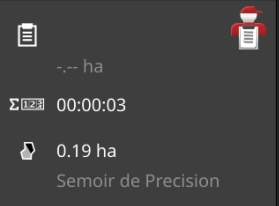
 at the top corner of the previous tab enlarged


 the summary of the task
2. Exporting a map
On your console:
- Click on the tab "Task Manager".
- Stop your task using the button

- Insert the USB key into the appropriate port
- Click on
 at the top corner of the tab
 - Click on the "Export" tab:

- Select the "USB Stick" button:

- Remove your USB flash drive


agrirouter transfer*
1. Importing a card
On your console:
- Once the task has been sent by the computer, go to the "Task Manager" tab
- Click on at the top corner of the previous tab enlarged
- Click on the "Import" tab:
- Select the desired task (tasks will be annotated "online")
- Check that the correct map is displayed :
- Then click on
- Finally, start your task by pressing the summary of the task
- You can now remove your USB flash drive
2. Exporting a map
On your console:
- Click on the tab "Task Manager".
- Stop your task using the button
- Click on at the top corner of the tab
- Click on the "Export" tab:
- Select theagrirouterbutton:

- Select the end point and click on Validate.

3. Miscellaneous settings
Priorities and deactivation of the Task Controller (TC) :
- Click on "Settings" :

- Click on "Applications" :

- Click on "ISOBUS Settings" :

- Disable the task controller


Or Select the TC priority number (1 high priority, 32 low priority)

What licenses do I have available?
- Click on "System"

- Press the "License Data" button
- The next screen gives you your license information:


- Following an update of the console, you can update your licenses by clicking on the "globe" button.

What is the version of my console?
- Press and hold down the manufacturer's logo "CCI", "Krone", "Kuhn", "Grimme"...
OR
- Click on "System"

- Then click on "Terminal data :

- Find the version of your console at the top of the page that appears.