Preliminary steps before importing on the console :
On your PC :
- Download your map/task from the platform
- Insert on the key
- Before importing your recommendation card into the usb key, extract the .SHP, .DBF, .SHX files from the recommendation file (.zip).
- Create a folder called "Rx" (be sure to respect upper case), then insert the files in it (as below)

- You can insert several modulation cards in the same Rx file.
- Unplug your USB flash drive
Import to your console :
3 - Insert the usb key in the console

4 - Click on Import recommendations and Shapefile data.

4 - Click on Import Rx

5 - Wait during file transfer

6 - Click on Accept

7 - Remove the USB key
8 - Click on documents

9 - Click on the Menu icon

10 - Click on GreenStar3

11 - Click on resources

12 - Fill in the various traceability information: Customer, Farm, Plot, Intervention, Season, Operator.

13 - Once in the plot tab, click on Rx.

14 - Click on prescription

15 - Select Shapefile

16 - Select your file

17 - Select product type

18 - Select "Fertilizer by weight" for spreading, otherwise "Chemical by volume" for spraying.

20 - Select the dose unit: L/ha or Kg/ha

21 - Indicate a dose in case of GPS loss then click on Accept

22 - Wait a few moments and then click on Accept.

23 - prescription page: click on Accept

24 - Click on Cartography
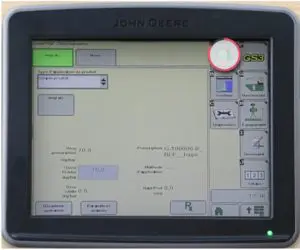
25 - Click on Cartography Settings

26 - Choose in the background list, select the cartography

27 - Click on accept

28 - View your modulation map in the background then click on the house icon.


Dose modulation is ready
Exporting data to MyJohnDeere
The Greenstar 3 console only exports in proprietary format. It is necessary to pass the files through MyJohnDeere, Operation Center.
On the console:
- Insert the USB key back into the terminal.
- Click on "Data Export".
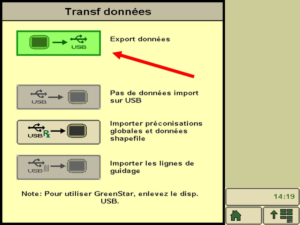
- A folder will then be created on the key, it can be removed at the end of the download.
On the computer:
- Plug in the USB flash drive
- Login to the MyJohnDeere site
- Click on
 and then on the "File Manager" tab.
- (https://files.deere.com)
 and then on the "File Manager" tab.
- Load the file by clicking on


- Choose the corresponding folder and the files inside. The application will be visible as below :


- The files are then transferred to MyEasyFarm the Operation Center integration
Configuration
For your console to be able to modulate, it is necessary to activate the Section Cut, Documentation and Guidance options.
- To do this, go to the GS3 tab

- Check the necessary boxes as appropriate. If the tractor is connected to an ISOBUS implement, Machine and implement must also be activated.